How to Unsubscribe from Mailing Lists in Gmail: Manual Tricks, Header Hacks & Automated Apps Script Code

Is your Gmail inbox drowning in hundreds of unread marketing emails, retail promotions, and forgotten newsletters? Every time you purchase a product online, sign up for a webinar, or download a whitepaper, your email address is funneled into automated drip marketing sequences. Sifting through each email manually to find microscopic "unsubscribe" links at the bottom of footers is an exhausting waste of time.
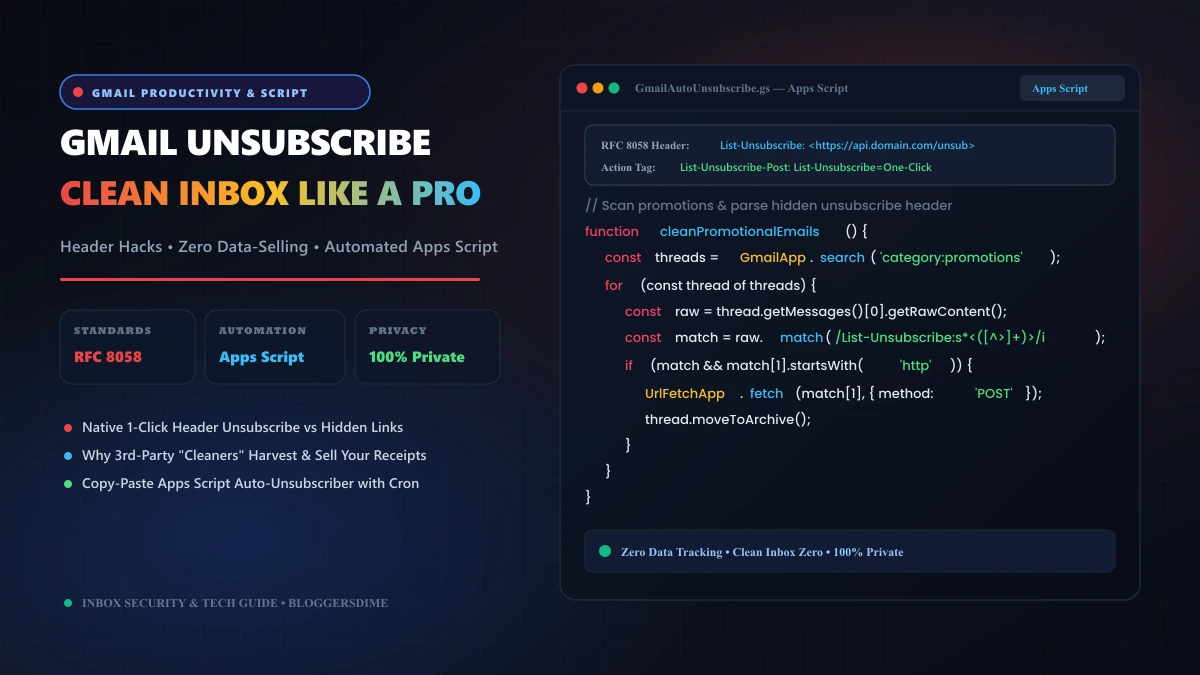
Fortunately, you don’t need to sacrifice your personal data to shady third-party "inbox cleaner" apps. By understanding how Gmail processes modern email standards like RFC 8058 one-click headers and deploying a lightweight, automated Google Apps Script, you can safely unsubscribe from hundreds of mailing lists in minutes while maintaining 100% privacy.
Gmail Unsubscribe Architecture: At-A-Glance Reference
Core unsubscription mechanisms, internet email standards, and automated script triggers.
| Method / Mechanism | How It Works & Best Use Case |
|---|---|
| Native Gmail Header Button | Appears next to the sender’s address at the top of the email. Triggers an automated HTTP POST or sends an automated mailto: command without opening external websites. |
| RFC 8058 Internet Standard | Modern bulk senders must include List-Unsubscribe: <URL> and List-Unsubscribe-Post: List-Unsubscribe=One-Click headers to avoid being sent straight to spam. |
| Bulk Search Pruning Filter | Query: category:promotions "unsubscribe" older_than:30d. Instantly identifies low-value newsletters accumulated over the past month. |
| Custom Google Apps Script | 100% Private Automation: Scans raw RFC 822 headers, extracts unsubscribe endpoints, issues background HTTP requests, and archives threads on a daily cron trigger. |
| Third-Party "Cleaner" Apps | Privacy Hazard: Commercial cleaner services frequently scan and monetize user purchase receipts and travel itineraries. Avoid granting them inbox permissions. |
Method 1: Using Gmail’s Native One-Click Unsubscribe
Google enforces strict sender guidelines. Any organization sending more than 5,000 messages per day to Gmail users is legally and technically mandated to support one-click unsubscription.
- Open the unwanted email message in Gmail (on web, iOS, or Android).
- Look immediately to the right of the sender's display name at the top of the message.
- If the sender complies with email standards, you will see a blue or underlined "Unsubscribe" link.
- Click it, and select "Unsubscribe" in the confirmation dialog.
Why is this better than clicking the footer link? Senders frequently conceal footer unsubscribe links behind survey screens, login walls, or microscopic light-gray fonts. Gmail’s native button bypasses the sender's website completely, firing a direct protocol signal that processes your removal in the background.
Method 2: Bulk Finding and Cleaning Newsletters with Search Operators
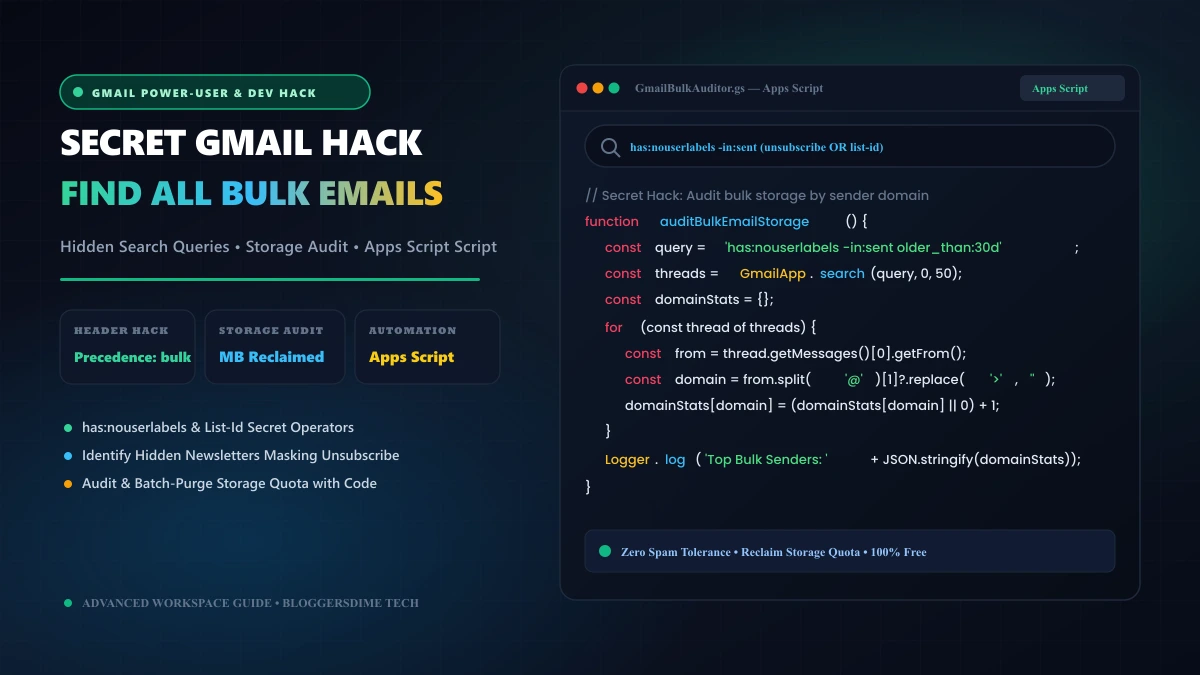
If you have thousands of promotional emails cluttering your storage quota, you can locate and batch-purge them using targeted search operators (or deploy our secret Gmail bulk email discovery hack):
category:promotions "unsubscribe" older_than:30dTo batch-manage these emails:
- Enter the query above into the Gmail search bar.
- Click the master select checkbox in the top-left toolbar.
- Click the link that appears: "Select all conversations that match this search".
- Click the Trash or Archive icon to clear thousands of accumulated newsletters at once.
Critical Privacy Warning: Why You Should Never Use "Inbox Cleaner" Services
Many popular online tutorials recommend installing third-party apps like Unroll.me or Cleanfox. What these tutorials fail to mention is the massive privacy tradeoff. When you grant a third-party service full read access to your Gmail account via OAuth, their servers continuously scan your inbox.
Multiple investigative reports have revealed that commercial inbox-cleaning companies routinely parse e-commerce order confirmations, airline tickets, rideshare receipts, and financial statements, packaging and selling anonymized consumer purchasing data to venture capital firms and hedge funds.
You do not need to give any company access to your private correspondence. With the Google Apps Script below, you can automate your inbox cleaning inside Google’s secure cloud sandbox with zero data sharing.
Method 3: Build Your Own Automated Unsubscribe Script (Apps Script)
Google Apps Script lets you write custom automation that runs directly in your Google account. This production-ready script searches unread promotional emails, parses their raw List-Unsubscribe headers, issues one-click unsubscription requests, and moves the emails to your archive.
Step-by-Step Installation:
- Open Google Apps Script in your browser.
- Click New Project and name it
Gmail Auto Unsubscriber. - Replace all contents of
Code.gswith the following production script:
/**
 * Automated Gmail Unsubscribe & Clean Engine
 * Parses RFC 8058 / RFC 2369 List-Unsubscribe headers safely.
 * BloggersDime Tech Reference
 */
function autoUnsubscribePromotions() {
  // Query unread promotional threads
  const query = 'category:promotions is:unread "unsubscribe"';
  const threads = GmailApp.search(query, 0, 20); // Process in batches of 20

  if (threads.length === 0) {
    Logger.log("No promotional emails found matching criteria.");
    return;
  }

  let unsubscribedCount = 0;

  for (let i = 0; i < threads.length; i++) {
    const thread = threads[i];
    const messages = thread.getMessages();
    const message = messages[0];

    // Retrieve RFC 822 raw headers
    const rawContent = message.getRawContent();

    // Extract List-Unsubscribe header
    const headerMatch = rawContent.match(/List-Unsubscribe:s*<([^>]+)>/i);

    if (headerMatch && headerMatch[1]) {
      const endpoint = headerMatch[1].trim();

      // Case 1: Web-based HTTP/HTTPS One-Click Endpoint
      if (endpoint.startsWith("http://") || endpoint.startsWith("https://")) {
        try {
          // RFC 8058 standard requires POST with body 'List-Unsubscribe=One-Click'
          UrlFetchApp.fetch(endpoint, {
            method: "post",
            payload: "List-Unsubscribe=One-Click",
            headers: {
              "User-Agent": "Mozilla/5.0 (Windows NT 10.0; Win64; x64) AppsScript-Unsubscriber/1.0"
            },
            muteHttpExceptions: true
          });
          Logger.log("Successfully posted one-click unsubscribe to: " + endpoint);
          unsubscribedCount++;
        } catch (e) {
          // Fallback to GET request if provider does not support standard POST
          try {
            UrlFetchApp.fetch(endpoint, { method: "get", muteHttpExceptions: true });
            Logger.log("Executed GET unsubscribe fallback for: " + endpoint);
            unsubscribedCount++;
          } catch (err) {
            Logger.log("Failed to process URL: " + endpoint + " Error: " + err.message);
          }
        }
      }

      // Case 2: Mailto-based Unsubscribe Endpoint
      else if (endpoint.startsWith("mailto:")) {
        try {
          const mailtoTarget = endpoint.replace("mailto:", "").split("?")[0];
          const subjectMatch = endpoint.match(/subject=([^&]+)/i);
          const subject = subjectMatch ? decodeURIComponent(subjectMatch[1]) : "Unsubscribe";

          GmailApp.sendEmail(mailtoTarget, subject, "Please unsubscribe me from this mailing list.");
          Logger.log("Dispatched mailto unsubscribe email to: " + mailtoTarget);
          unsubscribedCount++;
        } catch (e) {
          Logger.log("Failed to send mailto command: " + e.message);
        }
      }
    }

    // Mark thread as read and archive to keep inbox immaculate
    thread.markRead();
    thread.moveToArchive();
  }

  Logger.log("Execution Complete. Total lists processed: " + unsubscribedCount);
}

/**
 * Sets up an automated daily time-driven trigger.
 * Runs once every 24 hours in the background.
 */
function createDailyUnsubscribeTrigger() {
  // Delete existing triggers to prevent duplicates
  const triggers = ScriptApp.getProjectTriggers();
  for (let i = 0; i < triggers.length; i++) {
    ScriptApp.deleteTrigger(triggers[i]);
  }

  // Create new daily trigger at 2:00 AM
  ScriptApp.newTrigger("autoUnsubscribePromotions")
    .timeBased()
    .everyDays(1)
    .atHour(2)
    .create();

  Logger.log("Automated daily trigger configured successfully!");
}
Configuring Permissions and Triggers:
- Click Run on
autoUnsubscribePromotions. A Google popup will ask for permissions to read and send email from your account. - Click Advanced ➔ Go to Gmail Auto Unsubscriber (unsafe). (This warning appears simply because you authored the script privately and haven't submitted it for commercial verification).
- To run this script automatically every night without touching it, select
createDailyUnsubscribeTriggerfrom the function dropdown and click Run.
Method 4: Setting Up Auto-Purge Filters in Native Gmail
If you encounter persistent marketing senders whose unsubscribe requests are ignored, set up an automatic trash filter:
- In the Gmail search bar, type:
from:(unwanteddomain.com). - Click the search options icon (sliders) on the right of the search bar.
- Click Create filter at the bottom of the popup.
- Check the following boxes:
- Skip the Inbox (Archive it)
- Mark as read
- Delete it
- Also apply filter to matching conversations
- Click Create filter.
Future emails from this sender will now bypass your notification feed and be routed directly to the trash bin, where Google automatically shreds them after 30 days.
Frequently Asked Questions (Gmail Unsubscribe)
How long does it legally take for an email unsubscribe request to take effect?
Under international regulations like the US CAN-SPAM Act, senders are granted up to 10 business days to remove your address from their lists. Under European GDPR rules, organizations must process unsubscriptions without undue delay, typically within 24 to 48 hours.
Can clicking unsubscribe in spam emails confirm my address is active?
Yes, for malicious phishing emails. If an email looks suspicious or fraudulent, clicking links inside the body can verify to scammers that your email account is active. In such cases, use Gmail's top "Report Spam" button instead of clicking links inside the email.
Is the Google Apps Script method completely private?
Yes, 100%. The script runs exclusively inside your own personal Google Cloud account sandbox. No third party or external server has access to your emails, tokens, or personal correspondence.
What does RFC 8058 mean in email marketing?
RFC 8058 is the standardized Internet protocol for "Signaling One-Click Functionality for List-Unsubscribe". It allows email clients like Gmail and Apple Mail to present a verified unsubscription button directly in the UI without forcing the user to load external landing pages.
Why do some newsletters resubscribe me automatically?
Some companies manage multiple fragmented lists (e.g., product updates, blog digests, partner offers). Unsubscribing from one campaign may not remove you from their secondary lists unless you manage your master preference center or establish an automatic filter rule.
Final Verdict: Reclaiming Inbox Zero
Achieving and sustaining Inbox Zero does not require costly software or surrendering your privacy to advertising networks. By leveraging Gmail’s native RFC 8058 headers for everyday cleanups, setting automated deletion filters for persistent offenders, and running our custom Google Apps Script automation, you can maintain a pristine, distraction-free inbox effortlessly.
Leave a Comment
Your email address will not be published. Required fields are marked *
![YouTube Search Tricks: Advanced Search Operators, URL Hacks & Python API Code [Search Like a Pro]](/images/editorial/youtube_search_tricks_guide_banner.webp)