
How to Handle OAuth Permissions in Google Add-ons: Complete Developer Guide with Apps Script Code

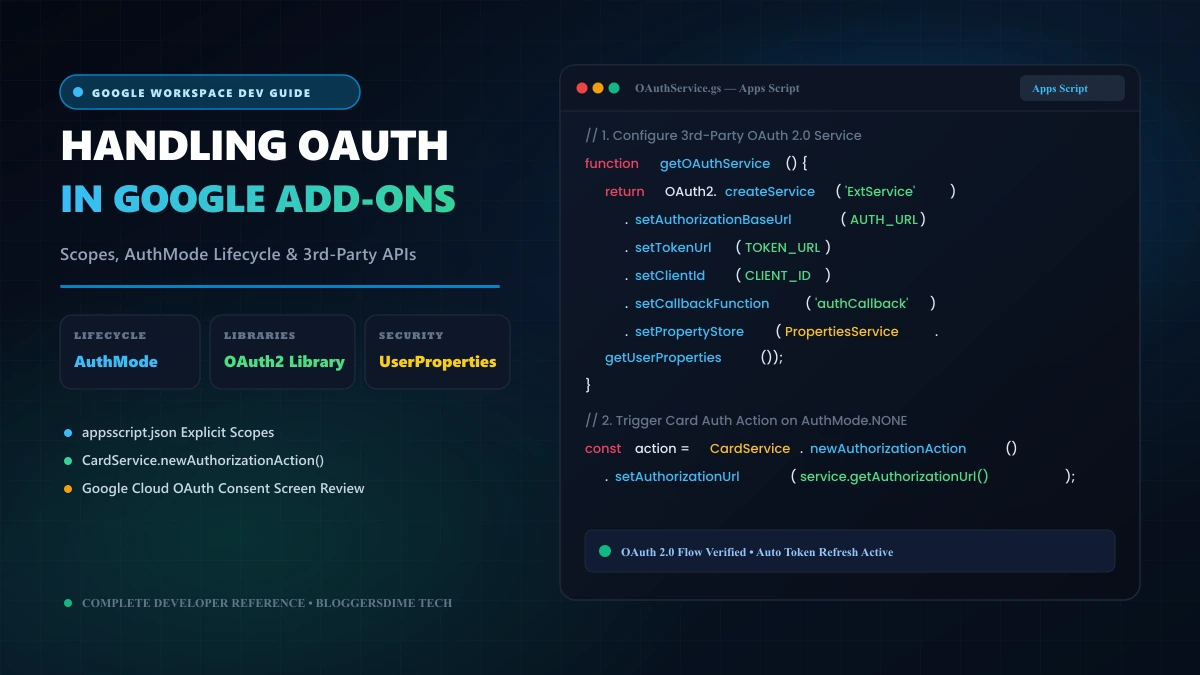
Building a Google Workspace Add-on for Gmail, Google Sheets, Docs, or Google Calendar is one of the most effective ways to deploy productivity tooling directly into enterprise workflows. However, nearly every developer eventually collides with Google’s formidable authorization barrier: cryptic ScriptError: Authorization is required runtime crashes, broken 3rd-party API connections, and rejected OAuth consent screen reviews during Google Workspace Marketplace verification.
Managing authorization in Google Workspace Add-ons involves two distinct layers: Google Internal Workspace Scopes (which govern access to user spreadsheets, documents, and emails) and Third-Party OAuth 2.0 Flows (which connect your add-on to external services like Stripe, Jira, GitHub, Notion, or custom REST APIs). In this comprehensive developer guide, we break down the execution lifecycle, manifest scope hygiene, token persistence, and full production Apps Script code.
Google Add-on OAuth Architecture: At-A-Glance Reference
Core execution modes, storage APIs, and standard endpoints for Google Workspace Add-on developers.
| Component | Production Standard & Behavior |
|---|---|
| Execution Lifecycle (AuthMode) | AuthMode.NONE: Trigger has zero user credentials. AuthMode.LIMITED: Basic contextual access. AuthMode.FULL: Full user authorization granted to execute sensitive services. |
| Scope Declaration | Must be explicitly locked in appsscript.json under oauthScopes to prevent silent auto-broadening of scopes. |
| Third-Party OAuth 2.0 Engine | Google's official Apps Script OAuth2 library: 1B7FSrk5Zi6L1rSxxTDgDEUsPzlukDsi4KGuTMorsTQHhGBzBkMun4iDF |
| Token Storage Engine | PropertiesService.getUserProperties() ensures isolation per user; never store bearer tokens in getScriptProperties(). |
| Redirect Callback URI Format | https://script.google.com/macros/d/{SCRIPT_ID}/usercallback |
Understanding the Apps Script Authorization Lifecycle (AuthMode)
One of the most frequent sources of runtime bugs is misunderstanding Apps Script’s authorization modes. When an add-on is triggered contextually (for instance, when a user opens an email in Gmail or selects a row in Google Sheets), Apps Script executes your trigger under a specific ScriptApp.AuthMode:
AuthMode.NONE: The script runs without any user authorization. This happens when an add-on is installed but not yet authorized for the active document. Crucial rule: You cannot call external HTTP requests (UrlFetchApp) or read document content in this state. Attempting to do so immediately throws an exception.AuthMode.LIMITED: The script has permission to interact with certain Google services, but cannot execute actions requiring personal user credentials or third-party OAuth access.AuthMode.FULL: The user has authorized your add-on. The script has complete access to all scopes declared in your manifest.
To handle AuthMode.NONE gracefully without crashing your add-on, your card builder must inspect the execution mode and render an authorization prompt rather than trying to fetch protected resources immediately:
function buildContextualCard(e) {
  // Check authorization state before calling protected services
  if (e.authMode === ScriptApp.AuthMode.NONE) {
    return CardService.newCardBuilder()
      .setHeader(CardService.newCardHeader().setTitle("Authorization Required"))
      .addSection(
        CardService.newCardSection()
          .addWidget(CardService.newTextParagraph().setText("Please authorize BloggersDime Connector to access this resource."))
          .addWidget(CardService.newButtonSet().addButton(
            CardService.newTextButton()
              .setText("Authorize Now")
              .setAuthorizationAction(CardService.newAuthorizationAction().setAuthorizationUrl(getAuthorizationUrl()))
          ))
      )
      .build();
  }

  // Proceed with normal workflow if AuthMode is FULL
  return renderMainDashboardCard();
}
Step 1: Explicitly Declare Scopes in appsscript.json
By default, the Apps Script editor dynamically inspects your code and tries to deduce required scopes automatically. In production add-ons, this is dangerous. Calling a single utility function can accidentally trigger broad scopes (such as full Google Drive read/write access), which instantly flags your application for a mandatory, costly Cloud Application Security Assessment (CASA) Tier 2 audit.
Always disable auto-scoping by declaring explicit, least-privilege scopes in your appsscript.json manifest file:
{
  "timeZone": "GMT",
  "dependencies": {
    "libraries": [{
      "userSymbol": "OAuth2",
      "libraryId": "1B7FSrk5Zi6L1rSxxTDgDEUsPzlukDsi4KGuTMorsTQHhGBzBkMun4iDF",
      "version": "43"
    }]
  },
  "exceptionLogging": "STACKDRIVER",
  "oauthScopes": [
    "https://www.googleapis.com/auth/script.external_request",
    "https://www.googleapis.com/auth/userinfo.email",
    "https://www.googleapis.com/auth/spreadsheets.currentonly",
    "https://www.googleapis.com/auth/script.container.ui"
  ],
  "addOns": {
    "common": {
      "name": "Cloud Data Sync",
      "logoUrl": "https://bloggersdime.com/logo.png",
      "layoutProperties": {
        "primaryColor": "#0284c7"
      }
    }
  }
}spreadsheets.currentonly instead of spreadsheets. Narrow scopes protect user privacy and drastically accelerate Google's OAuth verification approval window.
Step 2: Connecting Third-Party Services via OAuth2 Library
When your add-on needs to communicate with external APIs (like Stripe, Slack, HubSpot, or a custom OAuth 2.0 backend), you must manage the OAuth handshake inside Apps Script. Google maintains an official open-source library specifically for this purpose.
Create a dedicated script file named OAuthService.gs and implement the standardized service factory:
/**
 * Configures the OAuth2 service for an external API provider.
 */
function getOAuthService() {
  const CLIENT_ID = PropertiesService.getScriptProperties().getProperty('OAUTH_CLIENT_ID');
  const CLIENT_SECRET = PropertiesService.getScriptProperties().getProperty('OAUTH_CLIENT_SECRET');

  return OAuth2.createService('ExternalService')
    .setAuthorizationBaseUrl('https://api.externalprovider.com/oauth/authorize')
    .setTokenUrl('https://api.externalprovider.com/oauth/token')
    .setClientId(CLIENT_ID)
    .setClientSecret(CLIENT_SECRET)
    .setCallbackFunction('authCallback')
    .setPropertyStore(PropertiesService.getUserProperties())
    .setScope('read:data write:data')
    .setParam('access_type', 'offline')
    .setParam('prompt', 'consent');
}

/**
 * Handles the OAuth redirect response from the external provider.
 */
function authCallback(request) {
  const service = getOAuthService();
  const isAuthorized = service.handleCallback(request);

  if (isAuthorized) {
    return HtmlService.createHtmlOutput(
      '<div style="font-family:sans-serif; text-align:center; padding:40px;">' +
      '<h2 style="color:#059669;">✓ Authorization Successful!</h2>' +
      '<p>You can close this tab and return to your Google Workspace Add-on.</p>' +
      '</div>'
    );
  } else {
    return HtmlService.createHtmlOutput(
      '<div style="font-family:sans-serif; text-align:center; padding:40px;">' +
      '<h2 style="color:#dc2626;">✗ Authorization Denied</h2>' +
      '<p>Unable to complete connection. Please try again.</p>' +
      '</div>'
    );
  }
}

/**
 * Returns the unique OAuth callback redirect URI to register in your OAuth provider console.
 */
function logRedirectUri() {
  const service = getOAuthService();
  console.log('Register this Redirect URI in your developer portal: ' + service.getRedirectUri());
}
Step 3: Creating Interactive Authorization Cards with CardService
In standard web applications, OAuth redirects simply open in a popup window. In Google Workspace Add-ons, Google requires using CardService.newAuthorizationAction(). This ensures Google securely intercepts the redirect URI and updates the add-on side panel as soon as the user completes the login flow.
function renderThirdPartyAuthCard() {
  const service = getOAuthService();

  // If user is already authenticated with valid token, show application UI
  if (service.hasAccess()) {
    return renderDataDashboard();
  }

  const authUrl = service.getAuthorizationUrl();

  const authAction = CardService.newAuthorizationAction()
    .setAuthorizationUrl(authUrl);

  const button = CardService.newTextButton()
    .setText("Connect to External Account")
    .setAuthorizationAction(authAction);

  return CardService.newCardBuilder()
    .setHeader(CardService.newCardHeader().setTitle("Third-Party Account Link"))
    .addSection(
      CardService.newCardSection()
        .addWidget(CardService.newTextParagraph().setText("Connect your external account to enable bidirectional data sync."))
        .addWidget(CardService.newButtonSet().addButton(button))
    )
    .build();
}
Step 4: Executing Authenticated API Requests with Auto-Refresh
Once authorized, the OAuth2 library automatically manages access token caching and expiration. When the token expires, the library will transparently use the stored refresh_token to obtain a new access_token without prompting the user:
function fetchExternalData() {
  const service = getOAuthService();

  if (!service.hasAccess()) {
    throw new Error('User is not authorized. Please link your account first.');
  }

  const response = UrlFetchApp.fetch('https://api.externalprovider.com/v1/records', {
    method: 'get',
    headers: {
      Authorization: 'Bearer ' + service.getAccessToken(),
      Accept: 'application/json'
    },
    muteHttpExceptions: true
  });

  const statusCode = response.getResponseCode();
  if (statusCode === 200) {
    return JSON.parse(response.getContentText());
  } else {
    console.error('API Error: ' + response.getContentText());
    throw new Error('Failed to retrieve external records. HTTP Code: ' + statusCode);
  }
}
Step 5: Revoking Access (Clean Logout Flow)
Providing a clean logout mechanism is mandatory under Google Workspace Marketplace listing policies. Implement a user-facing reset action:
function disconnectAccount() {
  const service = getOAuthService();
  service.reset(); // Purges tokens from PropertiesService.getUserProperties()

  return CardService.newActionResponseBuilder()
    .setNotification(CardService.newNotification().setText("Account disconnected successfully."))
    .setNavigation(CardService.newNavigation().updateCard(renderThirdPartyAuthCard()))
    .build();
}
Common Mistakes to Avoid in Production
- Never Store Bearer Tokens in ScriptProperties:
ScriptPropertiesare shared globally across all users of the add-on. Storing a user's OAuth access token here creates a critical security breach where all users share the same identity. Always usePropertiesService.getUserProperties(). - Calling
UrlFetchAppin Simple Triggers: Simple triggers likeonOpen()oronEdit()run strictly inAuthMode.NONEorAuthMode.LIMITED. Any network call will throw an immediate runtime permission exception. Move data synchronization to installed triggers or user-initiated button clicks. - Hardcoding Client Secrets: Never commit your OAuth Client Secret into client-side code or raw Apps Script repositories. Store secrets securely in
PropertiesService.getScriptProperties()or retrieve them via encrypted backend environment variables. - Neglecting Brand Verification in Google Cloud: Before launching publicly, configure your OAuth Consent Screen in Google Cloud Console. Ensure your Privacy Policy, Terms of Service, and verified domain (such as BloggersDime Privacy Policy) are linked properly to prevent the intimidating "Unverified App" warning screen.
Frequently Asked Questions (Google Add-ons OAuth)
Why does my add-on throw "ScriptError: Authorization is required"?
This error occurs when the code attempts to access a protected service (such as reading spreadsheet data, sending an email, or making an external HTTP request) while executing under AuthMode.NONE or AuthMode.LIMITED. To resolve it, wrap protected calls behind user-driven actions or verify the authMode before execution.
What is the difference between ScriptProperties and UserProperties for token storage?
ScriptProperties stores data globally for the entire add-on script across all users, whereas UserProperties isolates storage strictly to the current active user. OAuth tokens and session credentials must always be stored in UserProperties to prevent security breaches.
What is the exact redirect URI for Google Apps Script OAuth 2.0?
The redirect URI format is: https://script.google.com/macros/d/{SCRIPT_ID}/usercallback, where {SCRIPT_ID} is the unique script ID found in Project Settings. This exact URI must be whitelisted in your 3rd-party OAuth provider console.
How can I avoid CASA Tier 2 security review when publishing my add-on?
To avoid mandatory third-party CASA security assessments, stick to non-sensitive and narrow scopes. Use .currentonly scopes (like spreadsheets.currentonly instead of full drive or spreadsheets access) and only declare the absolute minimum permissions needed in appsscript.json.
How does the OAuth2 library handle expired access tokens?
Google's official OAuth2 library automatically inspects the token expiration timestamp stored in UserProperties. If the access token has expired and a refresh token is present, calling service.hasAccess() or service.getAccessToken() triggers an automated background token exchange before executing your HTTP request.
Final Architecture Thoughts
Mastering OAuth permissions transforms Google Workspace Add-ons from simple client-side macros into secure, scalable enterprise SaaS connectors. By locking your appsscript.json manifest with least-privilege scopes, handling AuthMode lifecycle states cleanly with CardService.newAuthorizationAction(), and isolating bearer tokens within UserProperties, you ensure rock-solid user trust and pass Google’s marketplace security verification with confidence.
Leave a Comment
Your email address will not be published. Required fields are marked *
![YouTube Search Tricks: Advanced Search Operators, URL Hacks & Python API Code [Search Like a Pro]](/images/editorial/youtube_search_tricks_guide_banner.webp)